
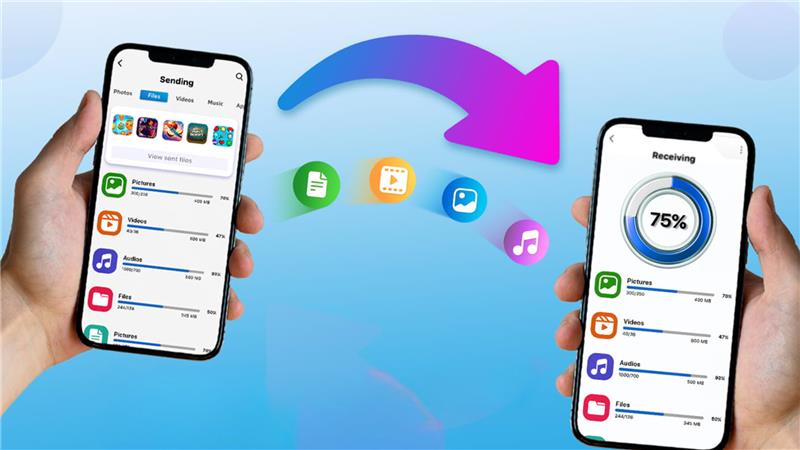
How to Backup and Transfer Data from Your Old Phone and Set Up Your New Device


Getting a new phone is exciting, but it can also bring worry about losing your data. In this article, you will learn how to back up everything from your old phone, move it securely to your new device, check that the transfer succeeded, and safely erase the old phone. Sell your phone or sell old gadgets using a trusted platform like Renewd. By following these steps, you can make sure nothing important is lost, and your transition to a new device is smooth and stress-free. This also ensures your old phone is safe and ready for resale.
Prepare Your Old Phone for Backup
First, make sure there is enough storage space on the old phone to hold a backup. A nearly full phone may fail to back up completely. Also, check that you have a stable internet connection (Wi-Fi is best).
Next, update the phone’s system software to the latest version. Updates often fix bugs that might interfere with backups. Then go through files, photos, videos, and apps. Delete duplicates and apps you no longer use. Cleaning up reduces time and effort when backing up.
Backup Options for Android Devices
- Google Account Sync: Most Android phones allow you to sync contacts, calendar entries, messages, and app data with your Google account. Make sure sync is turned on in settings.
- Google Drive (manual backups): You can manually upload important files, documents, videos, and photos to Google Drive. This helps with items not included in automatic sync.
- Manufacturer Cloud Services: Brands like Samsung, Xiaomi, and Huawei offer their own cloud backup options. These may back up your device settings, app data, and gallery.
- Local Backup (SD card, external drive, PC): You can copy files to an SD card, USB drive, or connect your phone to a computer and transfer the data. This does not depend on the internet and gives you a local copy.
Backup Options for iPhones (iOS Devices)
- iCloud Backup: iCloud can back up photos, messages, settings, app data, and more. On your iPhone, go to Settings, iCloud, iCloud Backup, and switch it on.
- iTunes / Finder Backup: Connect your iPhone to a computer and use iTunes (on older macOS or Windows) or Finder (on newer macOS) to make a full backup. This keeps an offline copy of all data.
- Third-Party Apps: Apps like WhatsApp let you back up conversation history. You may also upload files to Google Drive, Dropbox, or other cloud services as extra backup.
Transfer Data from Android to Your New Phone
If you are moving from an Android phone to an iPhone, use Apple’s Move to iOS app. It is free on the Google Play Store and helps you transfer data safely and directly.
- Move to iOS: Move to iOS safely transfers your data from Android to iPhone. On your new iPhone, select “Move Data from Android” during setup.
- Connect Devices: On your Android, download the Move to iOS app and enter the code shown on your iPhone to connect both devices over Wi-Fi.
- Select Data: Choose the data you want to transfer, including contacts, messages, photos, videos, bookmarks, mail accounts, and calendars.
- Complete Transfer: Keep both phones close and plugged in until the transfer is finished.
- Setup iPhone: Once done, finish setting up your iPhone by signing in with your Apple ID and reinstalling your favourite apps.
Transfer Data from iPhones to Your New Phone
If your new phone is also an iPhone, Apple makes transferring data quick and easy. During setup, you will be asked whether you want to restore your data from iCloud or from a computer backup made using iTunes or Finder. Choose the option that matches your previous backup.
- iCloud Backup: If you backed up to iCloud, sign in with your Apple ID on the new iPhone. Your contacts, photos, messages, app data, and settings will automatically download once connected to Wi-Fi. Keep your phone charging, as the process may take time depending on the size of your data.
- Computer Backup: If you used a computer backup, connect your new iPhone to the same Mac or PC. Open iTunes or Finder, select your device, and choose Restore Backup. This will copy everything from your old phone to your new one, including apps, photos, and documents.
- Complete Setup: When the transfer is done, finish setting up your iPhone, sign in to your accounts, and check that all your apps and data appear correctly. Your new iPhone will look and feel just like your old one, but with a fresh start and updated performance.
Setting Up Your New Device
Once your data is transferred, complete the setup. Connect to Wi-Fi, sign into your accounts (Google, Apple ID, email). Set up security measures like PIN, fingerprint, or face unlock. Open your apps and check whether your contacts, messages, and photos are present. Install any missing apps and re-enable automatic backups so your new device stays safe.
Double-Check After Transfer
Open a few photos, messages, and files to ensure they work. Check apps with saved settings (like banking, notes, or health) to confirm your data is intact. Also, check that your accounts are all signed in properly. When everything is correct, you can move to wiping the old device.
Wipe and Securely Reset Old Device
Before you sell or hand off the old phone, you should erase all data. On Android, go to Settings, System, Reset and Erase all data (factory reset). On iPhone, go to Settings, General, Transfer or Reset and Erase All Content and Settings. Before erasing, sign out of all accounts (Google, Apple ID, Samsung, etc) to avoid activation locks.
After reset, the device is clean and safe to sell phones, sell old gadgets, or trade in iPhone. If you use Renewd to sell your device, they arrange a home pickup and pay you cash on the spot. The agent may also erase data in front of you using certified software and issue a certificate confirming deletion.
Changing to a new phone does not have to feel risky. If you prepare your old phone, perform a reliable backup, transfer data carefully, check everything and securely wipe the old device, you will keep your memories and protect your privacy. Then your old phone will be ready to sell your phone, sell old phones, sell laptops, or sell old gadgets. With Renewd, the trade-in process is smooth, safe and transparent.
FAQ
The easiest way is to use built-in sync or cloud services (Google for Android, iCloud for iPhone) and restore during new phone setup.
Yes, if you erase all data and sign out of accounts. Renewd also offers a data wipe in front of you and gives you a certificate.
Yes. The “Move to iOS” app helps you transfer contacts, photos, messages and more when setting up your new iPhone.
No. The SIM card carries your network number; data transfer works without it. You can move the SIM later to your new device.
Share via: